Debug Scripts Task Component
- To enable debug, you need change the property 'Run64bitRunTime' to False
- Rebuild all scripts task component if you change the reference of underlyne DLL
- Only one scripts task can be debugged, delete all unwanted breakpoint
- Script task reference DLL need go C:\Windows\Assembly
Deploy the SSIS package:
1. Use command line interface with dtutil.
Copy and rename the SampleSSISPackage to Export_FlatFile_Daily_CustomerData.dtsx
|
| dtutil /FILE c:\DevSSISPackages\SampleSSISPackage.dtsx /COPY FILE;c:\TestSSISPackages\Export_FlatFile_Daily_CustomerData.dtsx |
Move the 'SampleSSISPackage' from Package Store to the MSDB database
|
| dtutil /DTS SampleSSISPackage.dtsx /MOVE SQL;SampleSSISPackage |
Delete the SSIS Package named 'SampleSSISPackage' in the MSDB database
|
| dtutil /SQL SampleSSISPackage /DELETE |
Verify the SSIS Package named 'SampleSSISPackage' in the MSDB database
|
| dtutil /SQL SampleSSISPackage /EXISTS |
2. deployment manifest file with C:\Program Files\Microsoft SQL Server\100\DTS\Binn\DTSInstall.exe
Step 1 Building SSIS packages using Deployment utility
On the Solution Explorer of the BIDS environment, right click on the Project Node and select the Properties.

Set the “CreateDeploymentUtility” to true and click OK.
Step 2
Right click on the Project node and click Build, which will generate Integration Service Deployment manifest file under the Project/Bin/Deployment folder.
Right click on the Project node and click Build, which will generate Integration Service Deployment manifest file under the Project/Bin/Deployment folder.
Step 3Double click on the manifest file and it pops up the screen given below.

By choosing the File system deployment, it will deploy the packages on that specified folder. On the other hand , SQL Server deployment will prompt through the next screens to deploy SSIS packages into specified SQL Server.
Also, check the Validate packages after the installation checkbox and click Next.

Specify the Server name and choose the relevant authentication. Also, provide the Package path. Before selecting this path on your SQL Server, integration Services can create the relevant folder name. This is the folder where the packages will be deployed finally in this process.


It can create a new folder on your project folders and provide the folder path. Click through next.
Finally, all the packages will be validated, as shown. Subsequently, click Next and Finish.

3. Management Studio
Import a SQL Server Integration Services Package in Management Studio
|
Import Process - In order to start the SSIS import process follow these steps:
|
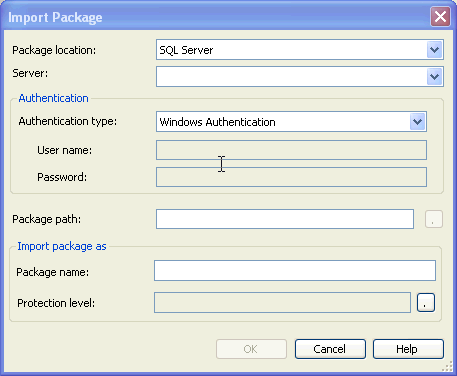 |
Import Package Options - Below outlines the interface options:
|
4. BIDS
Save Copy of Package in Business Intelligence Development Studio (BIDS)
|
Save Copy of Package Process - In order to start the process follow these steps:
|
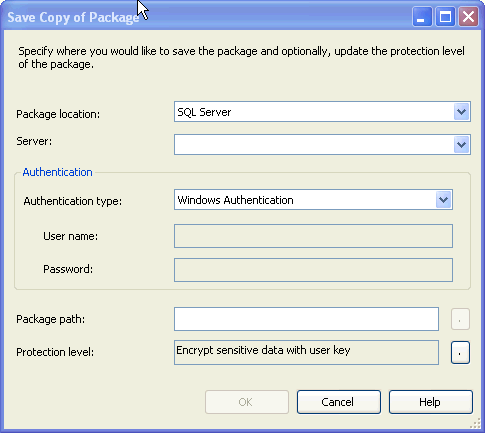 |
Export Package Options - Below outlines the interface options:
|
